Web Interface
StorageAnalyser includes a web-based frontend built with FastAPI. You can run it in your browser or as a standalone desktop application.
Quick Start
The easiest way to launch the web UI is with the --web flag:
storageanalyser --web
This starts the server on 127.0.0.1:8888, opens your default browser, and blocks until you click the Exit button in the UI (which stops the server and returns control to the terminal).
Desktop App Mode
Run StorageAnalyser as a standalone desktop application with its own native window:
pip install storageanalyser[desktop]
storageanalyser --desktop
This uses pywebview to display the web interface inside a native window using the system’s built-in WebView engine (WebKit on macOS, WebView2 on Windows). No Chromium is bundled — the app stays lightweight.
The backend server runs in a background process
Closing the window cleanly shuts down the server
Ctrl-C also exits gracefully
Use
--portto change the backend port if needed
You can also run it directly:
storageanalyser-desktop
storageanalyser-desktop --port 9000
Server Management
For longer-running use, manage the server as a background process:
# Using invoke tasks
uv run python -m invoke web.start    # Start on 127.0.0.1:8888
uv run python -m invoke web.stop     # Stop the server
uv run python -m invoke web.restart  # Restart the server
uv run python -m invoke web.status   # Check if running

# Or directly
uv run storageanalyser-web
The server binds to 127.0.0.1:8888 (local only).
Features
Scan Controls
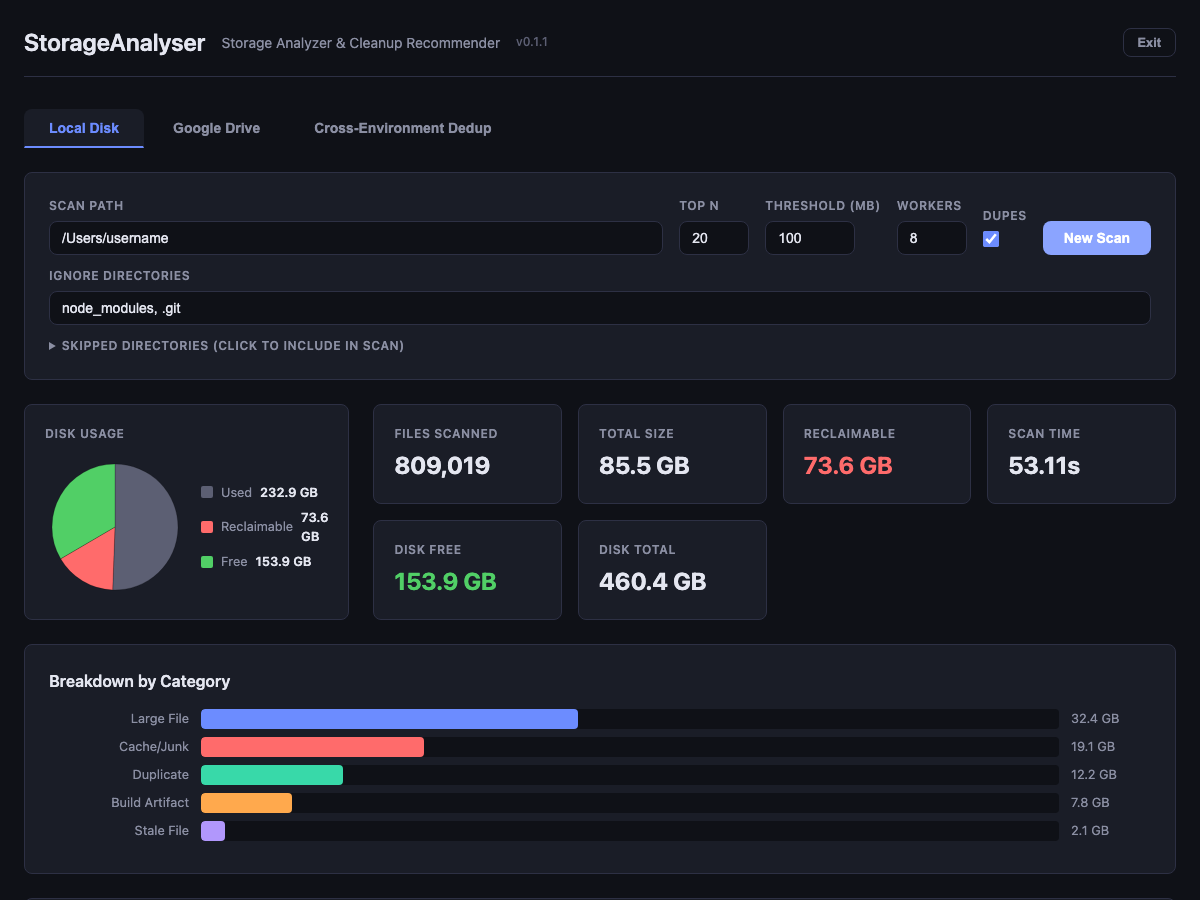
Scan form - Configure path, threshold, top N, workers, duplicate detection, and ignore directories
Skipped directories - Expandable list showing directories skipped by default, with checkboxes to include them in the scan
Start/Stop scan - The scan button toggles to a red Stop button during scanning, allowing you to cancel cleanly and see partial results
Live progress - SSE-based progress updates during scan (with cached estimates for repeat scans)
Results Display
Version display - Current version shown in the title bar
Disk usage pie chart - Visual breakdown of used, reclaimable, and free space
Summary cards - Files scanned, total size, reclaimable space, disk free, scan time
Category breakdown - Horizontal bar chart showing space by category
Clickable treemap - Visual representation of recommendations grouped by category; click any cell to jump to its entry in the recommendations table
Recommendations
Category tabs - Recommendations sorted into per-category tabs (All, Large File, Cache/Junk, Duplicate, etc.) with item counts
Per-tab summary - Each category tab shows total item count and total size
Short paths toggle - Switch between elided paths (
~/Documents/.../file.txt) and full paths; hover for the full path in a tooltipSortable columns - Click column headers to sort by path, size, age, or priority (each tab maintains independent sort state)
Duplicate details - Duplicate entries list all copies with per-file size and total wasted space
Cleanup script - Select recommendations and download a bash cleanup script
Exit button - Cleanly shuts down the server from the browser
Google Drive Integration
The Google Drive tab lets you scan your Drive storage and view a size breakdown with links to files.
Setup
Create a project and enable the Google Drive API
Create an OAuth 2.0 Client ID (Desktop app type)
Download the credentials JSON file
In the StorageAnalyser web UI, switch to the Google Drive tab
Upload the credentials JSON and click Authorize
Complete the Google consent flow in the browser that opens
Click Scan Drive to analyze your storage
What it shows
Storage pie chart - Drive usage, trash, and free space
File type breakdown - Bar chart by MIME type (Docs, Sheets, PDFs, images, etc.)
Largest files table - Sorted by size with Open links to view each file in Google Drive
Credentials are stored locally at ~/.config/storageanalyser/. Use the Disconnect button to remove saved tokens.
Cross-Environment Deduplication
The Cross-Environment Dedup tab finds duplicate files across your local disk and Google Drive using MD5 checksums.
How it works
Run a Local Disk scan and/or Google Drive scan – file metadata is cached in a SQLite database at
~/.cache/storageanalyser/scans.dbSwitch to the Dedup tab and click Compute Checksums – this computes full MD5 hashes for local files that are dedup candidates (files whose size matches at least one other file). Google Drive files already have MD5 checksums from Google.
Click Find Duplicates – matches files across all sources by MD5 checksum
What it shows
Duplicate groups – files that share the same MD5 hash, sorted by size
Cross-environment badge – groups spanning both local and Google Drive are highlighted
Savings estimate – how much space could be reclaimed by removing duplicates
Links – Google Drive files link directly to Drive; local files show full paths
Screenshot
API Endpoints
Local Disk
Method |
Endpoint |
Description |
|---|---|---|
|
|
Main page |
|
|
Start a scan (query params: path, top_n, threshold_mb, workers, find_duplicates, ignore_dirs, include_dirs) |
|
|
SSE progress stream |
|
|
Current scan status |
|
|
Scan results as JSON |
|
|
Download cleanup script (query param: paths) |
|
|
List directories skipped by default |
|
|
Get cached ignore dirs for a path |
|
|
Cancel a running scan |
|
|
Reset state for a new scan |
|
|
Shut down the server |
Google Drive
Method |
Endpoint |
Description |
|---|---|---|
|
|
Check credentials and auth status |
|
|
Upload OAuth2 credentials JSON |
|
|
Start OAuth2 authorization flow |
|
|
Start a Google Drive scan |
|
|
Get scan results |
|
|
Remove saved auth token |
Deduplication
Method |
Endpoint |
Description |
|---|---|---|
|
|
Stats about cached scan data |
|
|
Compute MD5 checksums for local dedup candidates |
|
|
Find duplicates across all cached scans (query param: min_size) |